We have all been there. Your finger slips, or you clear a chat too quickly, and suddenly an important conversation is gone. Panic sets in. You wonder, “Can I get those messages back?”
The short answer is: It is difficult, but not always impossible.
Instagram does not have a simple "trash can" for messages like it does for photos. However, there are a few clever ways to check if your data still exists. This guide will walk you through the official methods, the reliable workarounds, and the scams you must avoid.
Can You Recover Deleted Instagram Messages?
Before we start, we need to be honest. Instagram does not officially support recovering deleted Direct Messages (DMs). When you delete a message, Instagram’s system usually flags it for permanent removal. Unlike deleted photos, which go to a "Recently Deleted" folder for 30 days, messages are designed to disappear immediately to protect user privacy.
However, "deleted" does not always mean "gone forever" instantly. You might find traces of your messages in three places:
- Instagram’s "Download Your Information" data files.
- Your phone’s notification history (Android only).
- A connected Facebook account.
Let’s try the most official method first.
Method 1: The "Download Your Information" Tool
This is the only method provided directly by Instagram. Even if a message is gone from your app, it might still exist on Instagram's servers for a short time before being fully wiped. You can request a file containing all your account data to check.
Note: This does not guarantee you will see deleted messages, but it is the best first step.
Step-by-Step Guide:
1. Open the Instagram app and tap your Profile picture in the bottom right. 2. Tap the three lines (menu) in the top right corner. 3. Tap Settings and privacy. 4. Tap Accounts Center (this is usually at the very top of the list).
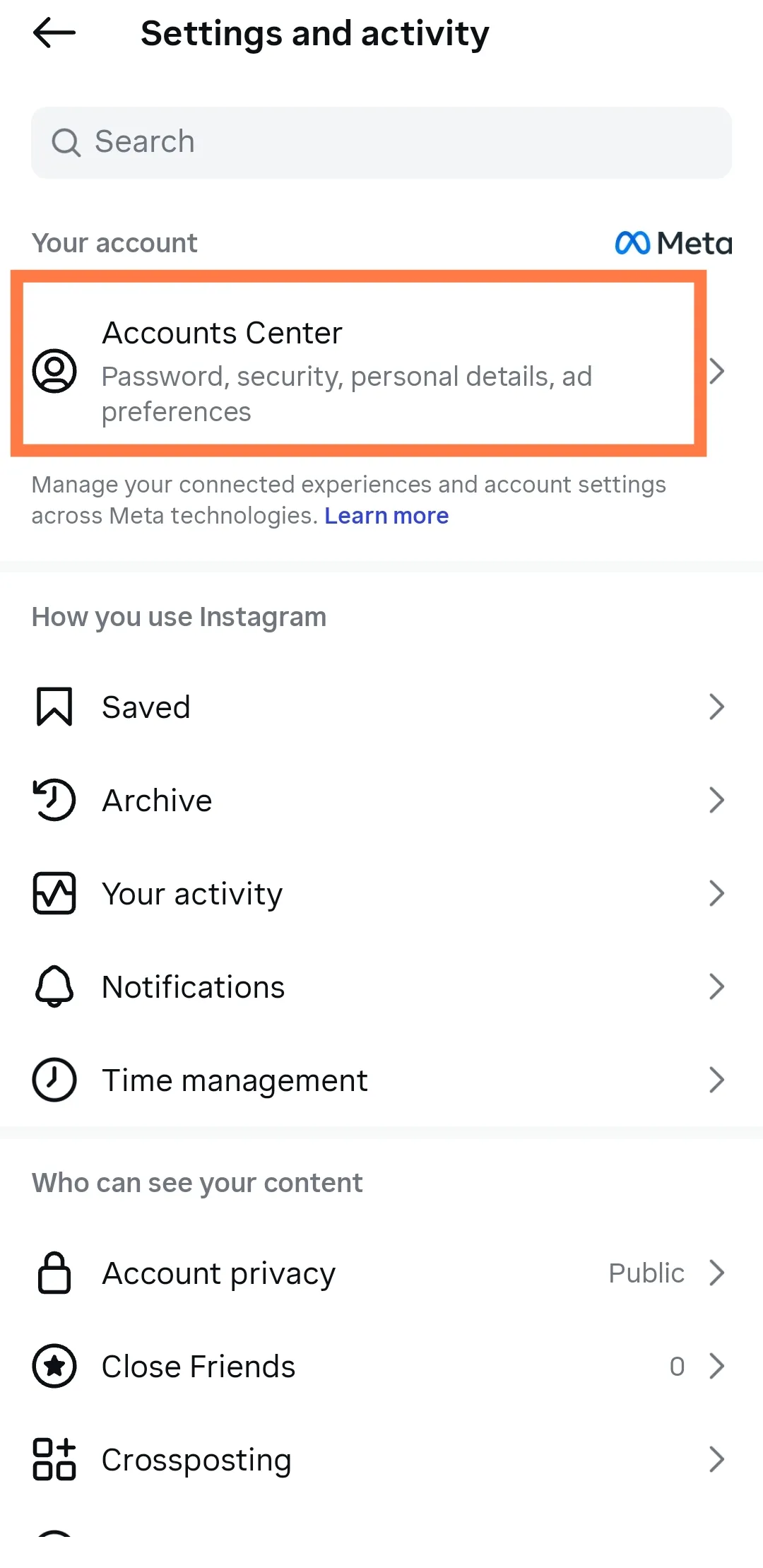
5. Under the "Account settings" section, tap Your information and permissions.
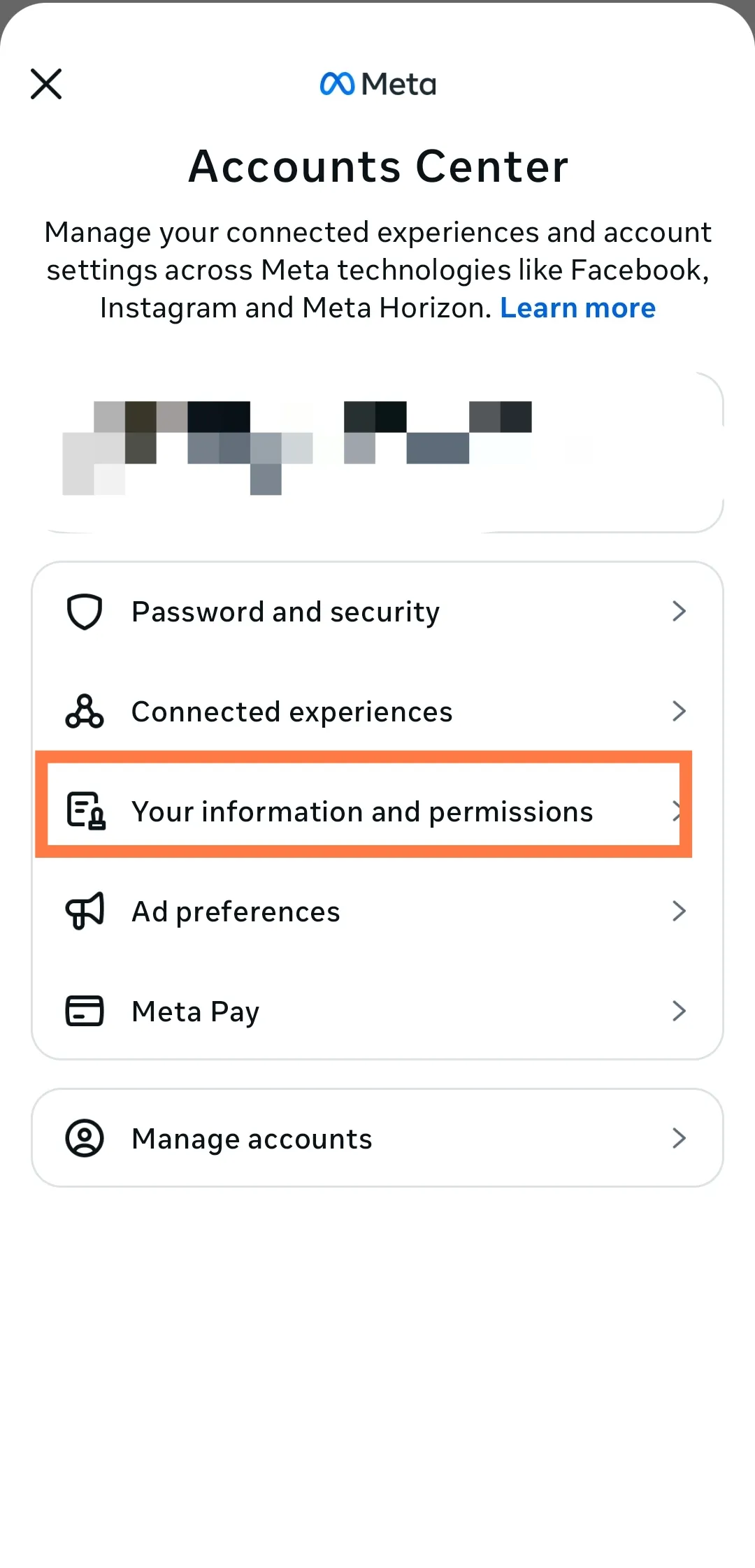
6. Tap Download your information.
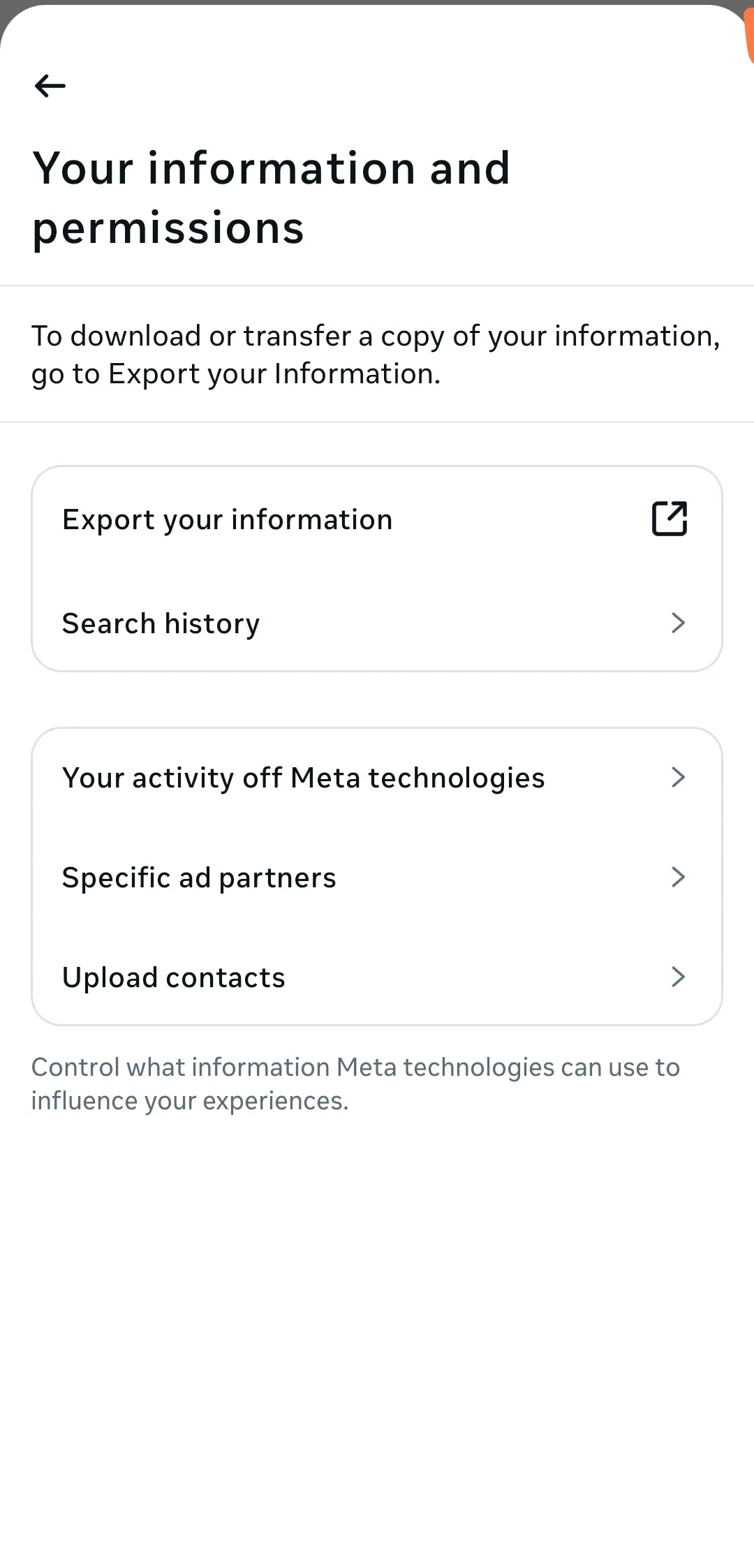
7. Tap Request a download. 8. Select the Instagram account you want to check. 9. Choose Select types of information. (Do not choose "Complete copy" unless you want to wait a long time). 10. Select Messages from the list and tap Next. 11. Under "Date range," choose All time (or the specific dates of the lost chat) and tap Submit Request.
Instagram will email you a file within 48 hours (usually much faster). When you get the email:
- Download the zip file to your computer.
- Unzip the folder.
- Open the folder and look for a file named
messages.jsonormessages.html. - Open this file in a web browser or text editor to search for your lost conversation.
Method 2: Check Android Notification History (Android Only)
If you have an Android phone, you might be in luck. Android keeps a log of all notifications for 24 hours. If you received the message and saw the notification on your lock screen, the text might still be saved there, even if you deleted it in the app.
How to Check:
1. Open your phone's Settings. 2. Tap on Notifications. 3. Tap on Advanced settings (or look for "Notification history"). 4. Tap Notification history. 5. If this switch was already On, you will see a list of recent notifications. 6. Scroll down to Instagram to see snippets of the messages you received.
Note: This only works for text you received, not text you sent. It also requires that you had Notification History turned on before the message arrived.
Method 3: Check Connected Facebook Accounts
Do you have a business account, or is your Instagram linked to your Facebook? If so, your messages might be managed through Meta’s "Business Suite." Sometimes, deleting a chat on the Instagram app does not sync immediately to the Facebook inbox manager.
How to Check:
1. Log in to your Facebook account on a computer. 2. Go to your Inbox (or Meta Business Suite). 3. Click on the Instagram Direct tab on the left sidebar. 4. Search for the conversation. You might find the chat history still intact there.
What You Should Know About "Recently Deleted"
There is a common misconception that you can just go to the "Recently Deleted" folder in Instagram settings to find chats. This is false.
The "Recently Deleted" feature strictly covers:
- Photos
- Videos
- Reels
- IGTV videos
- Stories
It does not store deleted messages. If a website tells you to look there for DMs, the information is incorrect.
Important Warning: Avoid "Recovery Apps"
When you search Google for "recover Instagram messages," you will see many third-party apps and websites claiming they can "undelete" your chats for a fee. Do not use these apps.
- They are security risks: These apps usually require your Instagram username and password. Giving them your login details is a fast way to get your account hacked.
- They cannot work: Instagram messages are stored on Instagram's secure servers, not on your phone. A third-party app cannot "scan" Instagram's servers to find data you deleted.
- They are often scams: Most just take your money and deliver nothing.
FAQ: Common Questions
Does Instagram notify the other person if I save or download our chat history? No. Using the "Download Your Information" tool is a private action. The other person in the chat will not know you have downloaded a copy of the messages.
If I "Unsend" a message, can I recover it? No. When you use the "Unsend" feature, the message is removed for both you and the recipient. It is generally wiped from the server immediately and is very difficult to recover via data download.
Can I recover messages by restoring my iPhone backup? This is very unlikely. Instagram data is stored on the cloud, not locally on your phone. Restoring an old iPhone backup will restore your apps, but when Instagram loads, it will sync with the current server data—which means the deleted messages will still be gone.
Can I ask the other person for a copy? Yes! This is often the easiest way. If you deleted the chat on your side, the conversation still exists on the other person's phone (unless you used the "Unsend" feature). You can ask them to screenshot the important parts and send them to you.
How far back does the "Download Data" tool go? It generally includes all data currently stored on Instagram's servers. If you select "All time," it will try to retrieve your entire history. However, if a message was deleted a long time ago (e.g., months or years), it is likely gone from the download file as well.
Conclusion
Recovering deleted Instagram messages is not easy because Instagram prioritizes user privacy. Once you hit delete, the app assumes you want that data gone for good.
Your best hope is to try the Download Your Information tool immediately or check your Android Notification History for very recent texts. If those fail, the safest and most effective method is simply asking the friend you were chatting with to send you a screenshot of the conversation.
Be safe, and remember to archive chats instead of deleting them in the future—that way, they are hidden but never lost!